The export menu is often the last thing a person sees before downloading a finished stamp, yet it can create more uncertainty than the design itself. PNG, JPG, SVG, EPS, PDF, and DOCX are not six versions of the same file. They preserve different things, work in different software, and respond differently when someone changes the size. The right format is the one that reaches the next person or application with the least friction.
Start by naming the next step. Will the stamp be placed into an email signature, a Word form, a presentation, or a print-shop production file? Does it need a transparent background? Will anyone resize it? Must a vendor edit the paths? One clear answer usually removes most formats from consideration. The goal is not to collect every extension. It is to hand off a file that behaves predictably.
The short answer by destination
Use PNG for most everyday digital placement, especially when the background must remain transparent. Use JPG only when a flat rectangular image is acceptable and transparency is not needed. Choose SVG when a browser, design app, or cutting workflow needs a scalable vector. Send EPS when an established print or sign workflow specifically requests it. Use PDF for a stable page-based proof or a broadly shareable print handoff. Choose DOCX when the recipient needs the stamp already placed in an editable Word document.
That list is a starting point rather than a technical rule. A print shop may prefer PDF even when an SVG would preserve the same geometry. A company portal may reject SVG for security reasons and accept only PNG. A colleague may have no vector software at all. Ask what the receiving system accepts before assuming the most technically capable file is the most useful one.
PNG: the reliable everyday choice
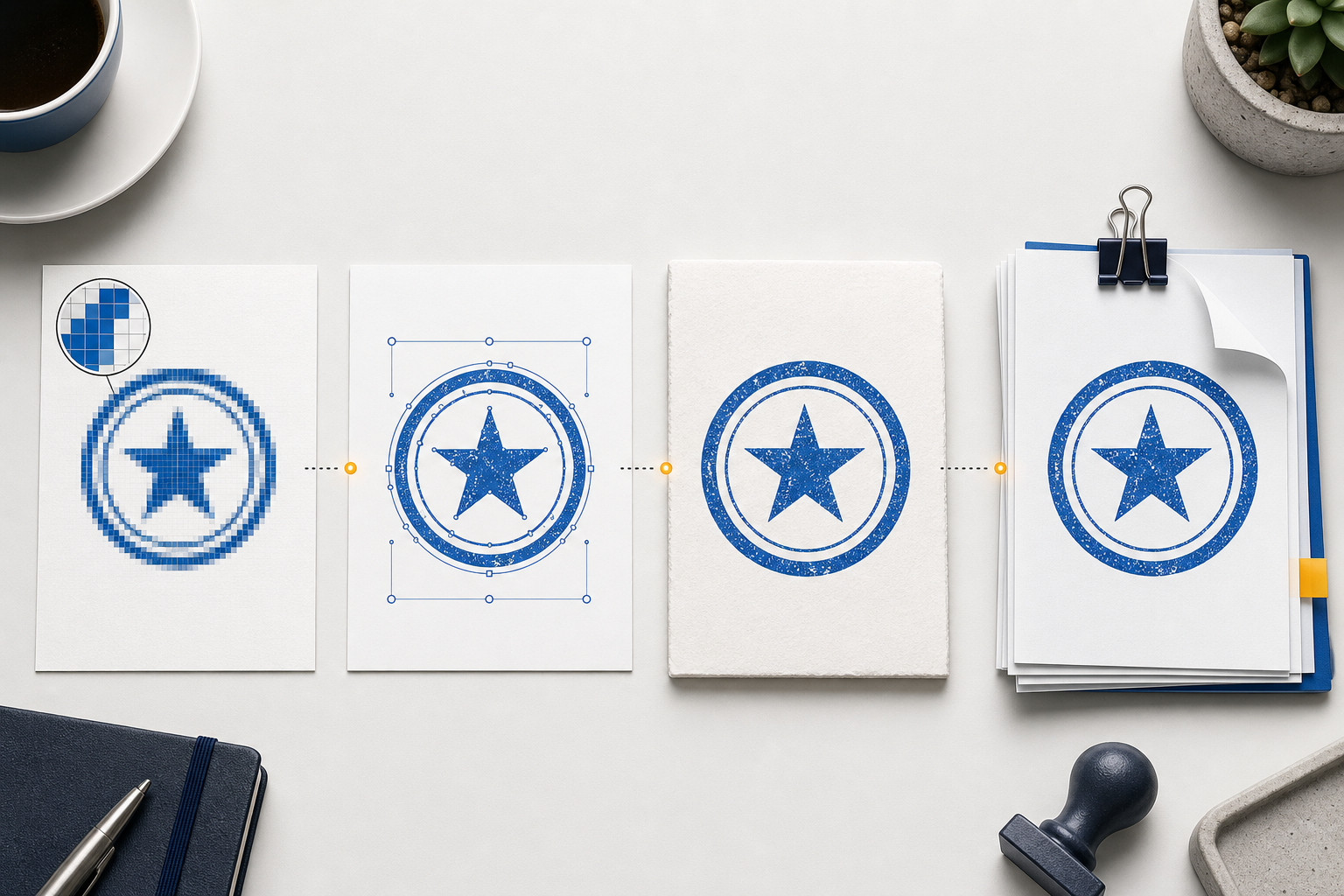
PNG is a raster format, which means the design is stored as a grid of pixels. Its most useful feature for stamp artwork is transparent background support. Place a transparent blue stamp over a white invoice, a pale form, or a presentation slide and only the inked artwork appears. There is no unwanted white rectangle around it.
PNG works in browsers, office software, content-management systems, image editors, messaging apps, and most print portals. That wide compatibility makes it the safest default when the file will be used digitally at a known size. It is also straightforward for non-designers: insert it, position it, and leave its aspect ratio locked.
The limitation is scaling. A PNG contains a fixed number of pixels. Reducing it normally looks clean, while enlarging it beyond its native dimensions can make edges soft or jagged. A high-resolution export provides more room, but it is still a raster image. Keep an original high-resolution version and create smaller copies for routine use rather than repeatedly enlarging a small file.
Transparency can also be lost if the image is copied through software that flattens it against white. Test the actual workflow once. Insert the PNG into a representative document, export that document to PDF, and confirm that the stamp remains clean. A format is only “supported” if the full path from download to final document preserves it.
JPG: useful when the background is part of the image
JPG is another raster format, but it does not support transparency. The file always has a rectangular background. It uses lossy compression, which keeps file sizes small by discarding subtle visual information. That behavior is excellent for photographs and less ideal for crisp lines, small type, and flat-color stamp edges.
A JPG can still be useful when the stamp is intentionally shown on a fixed white card, included in a photo-based layout, or uploaded to a system that accepts only common photographic formats. Export it at the final or a larger size, choose a high quality setting, and inspect small text for compression halos.
Do not select JPG merely because every device opens it. PNG is just as widely usable in most modern workflows and usually preserves stamp artwork more cleanly. If the destination needs transparency or the mark contains fine text, PNG is the better raster choice.
SVG: scalable artwork for modern workflows
SVG stores shapes, paths, and other drawing instructions rather than a fixed pixel grid. A well-formed SVG can be scaled from a small document mark to a large sign without creating pixelated edges. It is especially useful in browsers, interface design tools, many vector editors, laser and cutting workflows, and production systems that understand web-standard vector artwork.
Scalability does not make every size equally good. A line that looks balanced at 50 millimeters may appear too heavy at 10 millimeters or too thin at one meter. Small type can remain mathematically sharp but still be physically unreadable. Vector formats preserve geometry; they do not remove the need to proof the intended size.
Fonts are another consideration. If the receiving system does not have the typeface used in the design, live text may be substituted. Converting text to paths or embedding supported font data can reduce that risk, but it changes editability and increases complexity. Open the exported SVG in a second application or browser and compare it with the editor preview before sending it onward.
Some office and upload systems block SVG files, even though the format itself is common. If the recipient cannot open the file directly, include a PNG preview and ask whether another vector format is preferred. Do not ask a nontechnical colleague to solve a compatibility problem just because SVG is theoretically superior.
EPS: a durable print-industry handoff
EPS has been used for vector artwork in print, signage, engraving, and prepress for many years. Modern designers may work mainly with PDF and SVG, but some production systems and vendors still ask specifically for EPS. When that request comes from the person producing the plate, supplying it is usually the simplest path.
An EPS file can preserve vector paths and spot-style artwork, which is valuable for a one-color stamp. It is less convenient for everyday viewing. Browsers and office applications generally do not preview it, and operating systems may require dedicated software. For that reason, send a PNG or PDF proof alongside the EPS so everyone can see the intended result without opening the production file.
Treat EPS as a requested production format rather than an automatic badge of quality. If no one in the chain uses software that reads it, the file adds confusion. Ask the print provider for their preferred format, color mode, final dimensions, and whether text should be outlined. A two-minute question is more useful than exporting every possible option.
PDF: the dependable proof and page container
PDF is designed to preserve a page’s appearance across devices. It is a strong choice for an approval proof because it can show the stamp at an exact physical size with notes, margins, and supporting information. It is also widely accepted by print providers and easy for clients or colleagues to review.
A PDF may contain vector artwork, raster artwork, or a mixture of both. The extension alone does not guarantee that every element remains editable or scalable. If a printer needs vector paths, confirm that the exported stamp is stored as vector content rather than a low-resolution image placed on a page.
For a physical plate order, a useful PDF proof includes the final width or diameter, the color, and a clear statement that the artwork should be produced at 100 percent. Keep generous page margins so no print dialog crops the design. When approval matters, the stable page view makes PDF easier to annotate and sign off than a loose image.
DOCX: ready for people who work in Word
DOCX is not a replacement for the master artwork. It is a document package that can place the stamp into an editable Microsoft Word file. This is helpful when the recipient’s real task is to add the mark to letters, forms, certificates, or internal templates without learning an image editor.
The convenience comes with layout variables. Different versions of Word, substituted fonts, page settings, and anchored-image behavior can shift content. Open the file on a second machine if the layout is important. Keep the underlying PNG, SVG, or PDF as the source asset so the stamp can be reused outside Word.
When a workflow depends on a shared company template, create one approved DOCX with the stamp placed correctly and protect the parts that should not move. This is safer than asking every user to insert and resize the image independently.
Transparency is a workflow requirement
Transparent background is often described as a visual preference, but it is really a compositing requirement. A transparent file lets the document’s own background show around and through the open parts of the stamp. That matters on colored forms, textured certificates, and layouts where the impression overlaps a line or signature.
PNG and SVG can preserve transparency. JPG cannot. PDF can preserve transparent elements internally, though the page itself is normally displayed as a page. DOCX can contain a transparent PNG, but the document is responsible for keeping it intact.
Check the edge pixels against both light and dark backgrounds. A file prepared against white can contain pale fringe pixels that become visible on blue or gray. A clean transparent export should not carry a white halo around the outer ring or text.
Color behavior matters too
A screen usually displays RGB color, while some print processes are managed in CMYK or as a specific spot ink. A bright blue chosen on a backlit display may look darker when printed or when converted by a vendor. For a physical rubber stamp, the available ink color is often more important than an exact digital color value.
Keep the artwork visually one color if it will become a one-color plate. Avoid effects that depend on opacity gradients, soft shadows, or multiple close shades unless the chosen production method supports them. A clean single-color vector or high-resolution raster is easier to reproduce consistently.
For digital use, save the approved color value with the brand notes. If several employees export separate versions by eye, the company seal can drift from navy to bright blue over time. One master design and a small set of approved exports prevent that.
Resolution and scale for raster downloads
Think about the largest realistic placement, not only the first one. A stamp used at 500 pixels wide on a website should not be exported at 200 pixels and enlarged. At the same time, inserting an enormous 10-times PNG into every Word file can make documents unnecessarily heavy.
Keep a high-resolution master and derive practical copies. A standard-size PNG may suit email and office documents. A three-times version offers comfortable room for presentations or moderate print use. A ten-times version is useful when the destination needs more pixels or when a production provider requests a large raster source.
Never stretch width and height independently. Lock the aspect ratio so a circular seal stays circular and type is not distorted. If the image must fit a narrow space, reduce the entire mark or create a different layout rather than squeezing it.
Ask four questions before downloading
- Where will the file be used first? A Word document, a browser, a print shop, and a cutting machine favor different handoffs.
- Does the background need to be transparent? If yes, remove JPG from the shortlist.
- Will the artwork be resized or edited? If yes, a compatible vector format may prevent quality loss.
- What can the recipient actually open? Compatibility is more valuable than theoretical capability.
If those answers are unclear, send a small PNG proof and ask the recipient for the production requirement. The StampDr support page is also available when the expected download does not match the file you received or an order needs to be traced.
A sensible package for common jobs
For inserting a finished stamp into routine business documents, begin with PNG. For a print provider who may resize the artwork, add SVG or EPS according to their request. For a sign-off document, include PDF. For colleagues who only need a ready-made Word file, add DOCX while retaining the original artwork separately.
The format packages on the pricing page group these outputs by common use. The basic option covers high-resolution PNG. The vector option adds SVG and EPS. The full option includes the broader set for workflows that cross print, office, and document production. Choose based on the handoff you can name today.
Proof the export, not only the editor
After downloading, open every format you plan to send. Compare the outer shape, text spacing, line weight, color, and transparency with the editor. Zoom in to catch missing elements, then view at the intended size. For a vector file, open it in a second compatible app when possible. For a DOCX or PDF, inspect page position and physical dimensions.
Use a clear file name and keep one approved version. If revisions are needed, change the design and export again rather than patching several downstream files independently. The article about the current StampDr template and editor library gives a practical overview of what can be built before choosing an export.
You can start the actual layout in the online stamp editor, but make the export decision with the recipient in mind. PNG is usually the easiest everyday file, SVG and EPS serve scalable production, PDF preserves a reviewable page, and DOCX delivers a ready-to-use office document. The best format is the one that opens correctly, stays clear at the required size, and reaches the next step without explanation.
Keep a simple master-file policy
Choose one approved source design and treat every download as an output from that source. Store the high-resolution or vector master in a controlled folder, then place practical copies in the locations where people actually work. This prevents a colleague from editing a small PNG, another from changing a PDF, and a third from recreating the logo in Word.
Use version names that describe a meaningful change. A new address, revised legal name, different plate size, or updated logo deserves a new version. A file copied to another folder does not. Mark obsolete exports clearly so they are not attached to new documents after the source has changed.
When a vendor returns a production-adjusted file, compare it with the approved master. Some changes—outlined text, joined paths, or a different color mode—may be reasonable for production. Keep that vendor file beside the order notes rather than silently replacing the editable source.
Test accessibility and security constraints
Some organizations restrict SVG because it can contain scripts or external references. Others remove transparent images from email signatures or compress attachments. A public website may require descriptive alternative text even when the visible mark contains the company name. These constraints belong in the format decision.
Use a flattened PNG for destinations that accept images but should not receive editable artwork. Use a reviewed SVG without external resources when vector delivery is permitted. For public documents, remember that an image of text is not automatically readable by assistive technology; include the organization name in nearby document text or an appropriate description.
A quick test in the real content-management system, office template, or upload portal is more reliable than a general compatibility table. The final destination has the last word.