Letters and e-invoices
Add the stamp you press on paper to the letters, quotes and invoices you send by email.
Press your stamp once on blank paper, take a photo and get a clean digital version of it. The tool clears the paper tint and specks, recolours the whole impression in one even ink and adds clear space around it. Save it as a PNG for your documents, or open it in the StampDr editor to add text, a border or a date line.
PNG, JPG or WebP up to 40 MB. A sharp photo in even light on pale paper gives the cleanest result.
or paste with Ctrl V
From paper to file
The tool reads the ink against the paper right around it, so a slightly grey scan or a photo with uneven light can still come out clean.
Upload a JPG, PNG or WebP of the stamp impression, paste it from the clipboard or start with the sample photo.
Move the clean-up slider until the paper tint is gone, switch on edge smoothing or speck removal, and choose the ink colour the stamp should have.
Set the clear space and print size, then download a PNG, JPG or WebP, copy the image, or open it in the editor at 40 mm on its longer side.
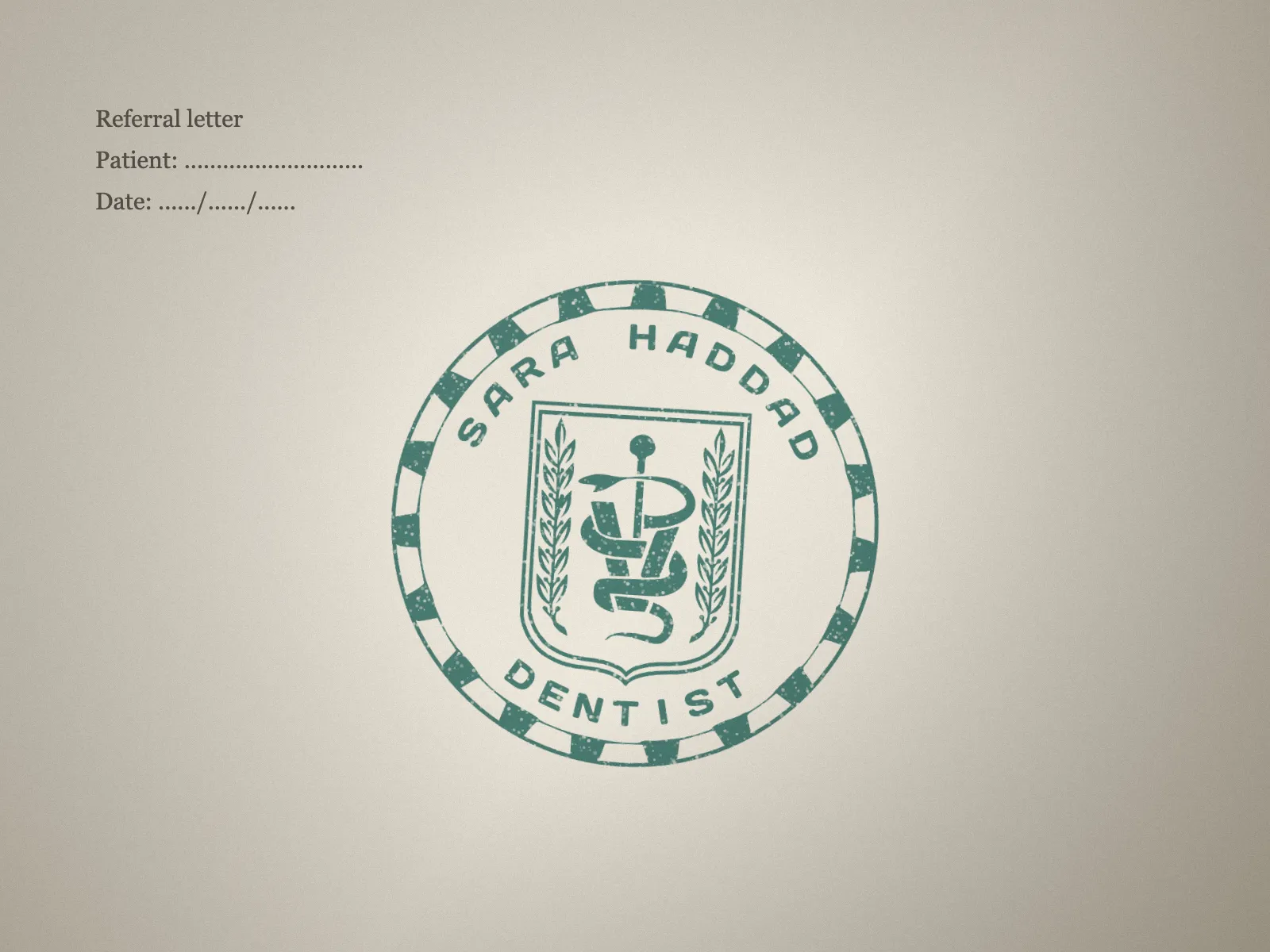

Most offices own a rubber stamp; few have a clean file of it.
Add the stamp you press on paper to the letters, quotes and invoices you send by email.
When the pad was running dry, the photo shows several shades; the tool gives the whole impression a single ink colour.
Open the cleaned stamp in the editor and set it beside new text or a border when you plan an updated stamp.
The cleanest digital stamps start from a fresh impression made for the purpose.
Press the stamp on plain white paper, away from printed lines, so there is nothing to clean around it.
Re-ink the pad and press straight down without rocking, so the edges of the letters come out sharp.
Hold the phone parallel to the paper; a photo taken at an angle turns a round stamp into an oval.
Leave speck removal on for dusty scans, and turn on edge smoothing when the photo is small or slightly soft.
No. Cleaning and recolouring run in your browser, and the photo is not uploaded to be processed.
You can load a photo and check the watermarked preview without one. A StampDr monthly, yearly or lifetime plan unlocks the clean download, the copy button and the hand-off to the editor.
It starts at 40 mm on its longer side, clear space included. Change the print size before opening it if your stamp is larger or smaller.
Yes. Switch on the option to keep the original colours and the paper is cleaned without recolouring the ink, which suits two-colour stamps.
Only where you are entitled to use that stamp and the recipient accepts a digital mark. A file made from a photo is not an original impression and does not replace one where a wet-ink stamp is required.
Professional online stamp maker. Create custom stamps with ease and precision.